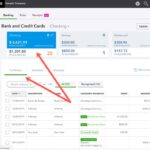

You’ve made it to the $0.00 difference on your reconciliation screen in QuickBooks Online. That green checkmark is tempting. But before you click Finish now, there’s one more step you can’t afford to skip: reviewing your open items.
Open items are the remaining transactions that haven’t been checked off as cleared during the reconciliation. Even if your totals match, these unchecked transactions may still present issues that need to be cleaned up before they throw off your future reports.
What Are Open Items?
When you reconcile an account in QBO, the goal is to match the ending balance from your bank or credit card statement with the sum of cleared transactions in your books. But once that difference hits zero, you’re left with a list of transactions that didn’t get checked off. These are your open items.
Some of them are completely valid. Like a check written at the end of the month that simply hasn’t cleared yet. But others may be:
- Duplicates
- Stale or forgotten entries
- Reconciliation adjustments in disguise
- Errors that will never clear and shouldn’t be sitting open
If you leave these open items unchecked without investigating, you may end up with cluttered registers, inaccurate reports, and confusing questions during audits or reviews.
Look for Transactions That Should Have Cleared
Your first step is to look over the dates of the remaining open items. Are any of these old? For example, a check written four months ago that still hasn’t cleared might need follow-up. Perhaps it was voided or never delivered. Maybe the vendor lost it. Either way, it’s a red flag that needs resolution.
In bank accounts, it’s common to see open checks that should have cleared by now. In credit card accounts, you might find duplicate payments. This happens when a payment gets posted from the checking account feed and again from the credit card feed. One of those was likely reconciled, and the other was left behind, still open.
To fix this, compare the details of both transactions. Check the coding, dates, attached documentation, and whether either was already reconciled. If the better transaction is still open and the reconciled one was the duplicate, delete the reconciled one and then go into the register to manually mark the correct one as reconciled.
Pay Attention to Prior Adjustments
Some users force a reconciliation to zero by letting QuickBooks post an adjustment. This might work temporarily, but it can leave behind real transactions that should’ve been included at the time.
To track this down, go to Reconcile > History by Account and look for reconciliations with auto adjustments. Click into the reconciliation report and review the line labeled “Adjustment.” If you find that a legitimate transaction is now sitting open, but an adjustment was used in its place, you’ll want to correct this.
You can either delete the adjustment and reconcile the proper transaction in its place, or modify the adjustment amount to account for the item you’re now including. This ensures you’re not leaving behind a duplicate or inflating your expenses by including both an adjustment and the real transaction.
Don’t forget: if you delete a previously reconciled transaction, you must manually mark the correct version as reconciled from the register.
What If the Open Item Is Truly Voided?
Sometimes, the open transaction isn’t a mistake. It just didn’t happen. A check may have been voided but never removed from QBO. If you’re in an open period, you can delete the transaction.
If it belongs to a prior closed period, however, don’t delete it. Instead, create an offsetting deposit in the current period with matching details. That way, both the original and the offsetting transaction can be marked as cleared during your next reconciliation, keeping your books accurate without changing past reconciliations.
Quick decision guide for stale open transactions:
- Current period? Delete if no longer valid.
- Closed period? Offset with a deposit, then reconcile both.
- Duplicate? Delete one, reconcile the correct one.
- Missing in prior reconciliation? Replace an old adjustment with the real transaction.
Time to Finish
Once you’ve reviewed and resolved each open item, you’re ready to wrap it up. Click Finish now to complete the reconciliation.
If QBO didn’t automatically fetch your bank statement, this is the moment to upload it manually. Just click Attach statement before closing the reconciliation window.
Then, go to Reconcile > History by Account, select the account and period, and download the reconciliation report. Save it as a PDF and attach it, along with the statement, to your month-end documentation or closed period spreadsheet.
Why It Matters
Finishing your reconciliation without reviewing open items is like closing the door while the mess is still on the floor. It might look clean from a distance, but it’s not really done.
Taking the extra time to clean up old entries, remove duplicates, and resolve adjustments keeps your records sharp. Your financial reports will be more accurate, your future reconciliations will go smoother, and you’ll build trust in your numbers.
The reconciliation process doesn’t truly end when the difference hits zero. It ends when everything left behind makes sense.
Still stuck? Let us know!
Related Posts on Redmond Accounting CA