The End of Classic View Is Here
If you’ve been holding onto the QuickBooks Classic View, the countdown is officially on. Intuit has announced that after May 22, users will no longer have the option to toggle back. The new interface will become the standard experience for everyone.
For many long-time users, this change may feel abrupt. The Classic View has been a familiar workspace for years, and like any workflow shift, it comes with a learning curve. But this move is not happening in isolation. It is part of a much larger shift in how QuickBooks is evolving.
Intuit has been steadily pushing toward a more modern, cloud-based, and streamlined experience across its ecosystem. That same strategy is also reflected in broader product decisions, including the gradual phase-out of older desktop versions and support cycles.
Why QuickBooks Is Moving Away from Classic View
At first glance, this might seem like a cosmetic redesign. It is not.
The new QuickBooks interface is built to support:
-A more consistent user experience across devices
-Faster navigation and reduced clicks
-Better automation and insights
-Improved scalability for growing businesses
The Classic View was designed for a different era of accounting software. Today, users expect real-time data, automation, and seamless integrations. Maintaining two parallel interfaces slows down innovation. By removing Classic View, Intuit can focus entirely on improving one unified experience.
What’s Different in the New View
The new QuickBooks layout introduces a different way of interacting with your financial data.
You will notice changes in navigation first. The left-hand menu is more streamlined, grouping related workflows together. Transactions, reporting, and banking are easier to access without jumping between screens.
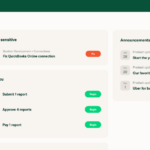
The dashboard has also been upgraded. It now emphasizes insights rather than just balances. You will see more visual summaries, trends, and prompts to take action.
Forms and workflows have been simplified as well. Tasks like categorizing expenses or matching bank feeds are more guided, reducing manual errors.
For new users, this layout feels intuitive. For experienced users, it can feel like everything moved overnight.
The Biggest Challenges Users Are Facing
Let’s be honest. Most resistance to this change is not about capability. It is about habit.
Common frustrations include:
- Not knowing where familiar features moved
- Feeling slower during the first few weeks
- Changes to workflows like bank feeds or reporting
- Differences in how transactions are categorized or reviewed
These are valid concerns. Productivity often dips temporarily during any system change. The key is to approach this transition intentionally rather than reactively.
Tips to Adjust Quickly to the New View
-
Start With Navigation, Not Tasks
Before diving into your daily work, take time to explore the layout. Click through each menu section and understand where things now live.
This small investment upfront will save hours of frustration later.
-
Use Search More Often
The search function in QuickBooks has become more powerful in the new interface. If you cannot find something, search for it instead of hunting through menus.
This is one of the fastest ways to adapt.
-
Revisit Bank Feed Workflows
Bank feeds are one of the most commonly used features and one of the most impacted by interface changes.
Pay attention to how transactions are suggested and categorized, where rules are applied, and how matching works.
If you regularly use bank rules or automation, this is an area worth reviewing early.
-
Customize Your Dashboard
The new dashboard is more flexible than before. Adjust it to highlight the metrics you actually use.
This turns the new interface into a tool, not just a layout.
-
Lean Into Automation
The new QuickBooks experience is built around automation. If you are still doing things manually, you will feel friction.
Now is the time to set up bank rules, and automate recurring transactions or use suggested categorizations.
The more you automate, the more the new interface works in your favor.
-
Train Your Team Early
If you have staff or clients using QuickBooks, do not wait until after May 22 to address the change.
Walk them through the new interface now. Even a short training session can prevent confusion and mistakes later.
What This Means for the Future of QuickBooks
The removal of Classic View is just one step in a broader transformation. QuickBooks is clearly moving toward a fully modern, cloud-first platform, increased automation and AI-driven insights and a more standardized user experience
We are already seeing this shift in how desktop products are being phased out over time, with support for certain versions ending in May 2026 and beyond.
For users, the message is clear. The future of QuickBooks is not about maintaining legacy workflows. It is about adapting to a more automated and connected system.
Final Thoughts
Change in accounting software is never just about features. It impacts how you work every day.
The end of Classic View may feel inconvenient in the short term, but it is ultimately designed to create a more efficient and scalable experience.
The businesses that adapt quickly will benefit the most. They will spend less time navigating software and more time using their financial data to make decisions.
If you have been putting off the switch, now is the time to lean in. May 22 is the deadline! It is also an opportunity to modernize how you use QuickBooks.
Related Posts on Redmond Accounting CA