Once the bank and credit card accounts are reconciled, many people think the hard work is done. But if you stop there, you could still be leaving big gaps in your financial records. Reconciling the bank is only the beginning of closing the books. The next step in your checklist is to work through the rest of your balance sheet accounts, starting with reviewing receivables and payables.
These two accounts represent promises: money owed to you by customers, and money you owe to vendors. Keeping them accurate ensures your Balance Sheet is reliable and your cash flow projections aren’t misleading. Let’s walk through how to review these accounts, clean up open items, and produce the documentation you’ll need at period-end.
What Are Accounts Receivable and Accounts Payable?
QuickBooks Online (QBO) automatically provides Accounts Receivable and Accounts Payable as default accounts. These are the backbone of accrual accounting.
- Accounts Receivable tracks money customers owe you for invoices you’ve issued but haven’t been paid yet.
- Accounts Payable tracks money you owe vendors for bills you’ve entered but haven’t yet paid.
Accrual accounting means we record revenue or expenses when the work has been done or the product has been received. Even if payment hasn’t yet changed hands. In other words:
- Accrual = action first, payment later.
- Deferral = payment first, action later (we’ll get to that in a future post).
Unlike bank accounts, A/R and A/P don’t need to be reconciled using QBO’s reconcile tool. Instead, their accuracy is validated through the payment process itself. When you apply a payment to an invoice or a bill, QBO automatically updates the payment status to “Closed.” That status, not a reconciliation checkbox, is what ensures balances are correct.
Running the Right Reports
To review these balances, start by running QBO’s supporting reports:
- For A/R, run the Open Invoices report or the Customer Balance Detail report.
- For A/P, run the Unpaid Bills report.
These reports show all open transactions as of the period you’re closing and serve as the supporting documentation for the balances on your Balance Sheet.
Here’s a key setting to check:
- Set the Report period end date to match the period you’re closing (for example, March 31 if you’re closing March).
- Change the Aging method from “Current Date” to “Report Date.”
Why does this matter? If you leave it on Current Date, the report only shows what’s due as of today. That means if a customer paid off an invoice in early April, it won’t show as outstanding, even though it was still open on March 31. Switching to Report Date gives you a snapshot as of period-end, which should tie exactly to your Balance Sheet.
Once your report is set up correctly, scroll down to the Open Balance total at the bottom. That number should match the A/R or A/P balance on your Balance Sheet for the same date. If it does, you’re on the right track. If not, it’s time to dig into the details.
Reviewing Open Items in Accounts Receivable
With the Open Invoices report in hand, the next step is to look for problems. Here are some common scenarios you may encounter:
1. Payments Not Applied
If you see customer payments showing up on the report, it means they weren’t applied to invoices. Check the payment transaction and see if supporting documents (like a scanned check or remittance advice) tell you which invoices were paid. Then apply the payment correctly so the invoice shows as closed.
2. Deposits Recorded Instead of Payments
Sometimes funds received are recorded as a bank deposit instead of a payment. This creates two issues: the invoice still shows as open, and revenue is overstated because both the invoice and the deposit hit income. The fix is to enter a proper Payment transaction, link it to the invoice, and then edit the deposit to include that payment instead of standalone revenue.
3. Zero Balances Still Appearing
You shouldn’t see customers with a zero balance on the report. If you do, it usually means transactions haven’t been applied correctly. A common fix is to create a zero-dollar Receive Payment to apply credits, deposits, or journal entries against invoices.
4. Writing Off Bad Debt
Sometimes invoices simply won’t be collected. In that case, use a Credit Memo linked to a Bad Debt account, then apply it against the invoice with a zero-dollar Receive Payment. This clears the balance and records the write-off properly.
5. Missing Invoices
As part of your review, make sure all revenue has been invoiced. Check for unbilled time, expenses, recurring invoices, or fixed fee contracts that still need to be entered.
6. Sub-Customer Troubleshooting
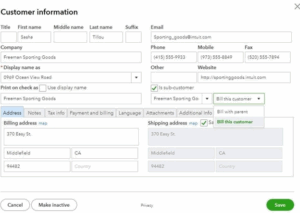
If you use parent and sub-customer structures, double-check your “Bill to” settings. Misapplied invoices and credits often happen when sub-customer billing isn’t set up consistently.
Reviewing Open Items in Accounts Payable
Next, repeat the process with the Unpaid Bills report. Just like with A/R, you’re looking for items that don’t belong or haven’t been matched properly.
1. Bill Payments Not Applied
If you see vendor payments showing on the report, they weren’t applied to a bill. Open the bill payment and check off the correct bill to clear it.
2. Checks Recorded Instead of Bill Payments
A common mistake is recording a vendor payment as a Check instead of a Bill Payment. This leaves the bill showing as unpaid and doubles up the expense. QBO makes it easy to fix: open the check transaction, find the linked bill in the side drawer, and attach it. QBO will convert the check into a bill payment and apply it properly.
3. Zero Balances Still Appearing
If a vendor with a zero balance shows up on the report, it usually means credits, expenses, or journal entries haven’t been matched to bills. Use the Pay Bills screen to create a zero-dollar bill payment that applies the transactions against each other.
4. Small Amounts to Write Off
For small balances you don’t intend to pay, record a Vendor Credit and then apply it against the bill with a zero-dollar bill payment.
5. Missing Bills
Finally, confirm that all vendor expenses have been recorded. Look for missing recurring bills, unentered invoices, or manual expenses that still need to be posted.
Saving and Documenting Your Work
Once you’ve cleaned up both reports, run them again as of the report date, verify the totals tie to your Balance Sheet, and then save them to PDF. Attach them to your Closed Periods spreadsheet along with your reconciliations.
This step is crucial. These reports are your supporting documentation. They show exactly what makes up your A/R and A/P balances at period-end. If anyone ever asks you to substantiate your numbers (auditor, lender, IRS), you’ll have the proof ready.
Final Thoughts
Closing Accounts Receivable and Accounts Payable isn’t just about making reports match, it’s about making sure your financial statements reflect reality. Open invoices should truly represent money owed to you, and unpaid bills should only reflect expenses you’re actually on the hook for. By taking the time to review, clean up, and document these balances, you create reliable financial records that support better decision-making and keep your business audit-ready.